
Run your first tournament
What you’ll achieve: by the end you’ll have run a tournament from sign-up to final ranking — teams registered, groups and courts drawn, matches created and released to players, live scores entered, and results published.
Federation staff running a league season? Start in Federations & Leagues instead.
Before you start: all you need is a club and access to Club Manager (the event is created there). Stripe is recommended but not required — connect it only if you want teams to pay online; you can also collect entry fees outside the app. To use the platform’s full potential, connect Stripe first.
Watch it
Section titled “Watch it”Read the transcript
Entries by form, payments by bank transfer, brackets on a whiteboard and results on WhatsApp. Wouldn't it be better to have it all connected?
Volley World is one solution, built from the ground up for volleyball. Its competitions follow the FIVB rules and the national rulebooks, like the Spanish federation's. And getting started is easy: tell us how your tournaments work. Pairs or teams, the categories, the fee per team, the dates and the courts. The robot prepares your club and opens the Competition Manager for you. Entries arrive on their own, with payment per team. Groups and draws are made in one click. The schedule lands on the courts. Scores update live on every phone, and on PRO tournaments the referee signs the digital scoresheet. Express tournaments, cups or a summer league: you decide. Entries, payments, results and your website: all in one place. You check it and publish. Creating your club is completely free, so you can try out the app and customise it with no commitment. And you're not on your own. Personal contact matters most to us: you get direct support from an expert whenever you need it. As soon as your club is set up, our onboarding team gets in touch to tailor the app to exactly your tournaments. However your tournaments work, Volley World adapts to it.
See the whole flow end to end — 48 teams into 12 groups, a court map, 72 matches and courts assigned — in under three minutes.
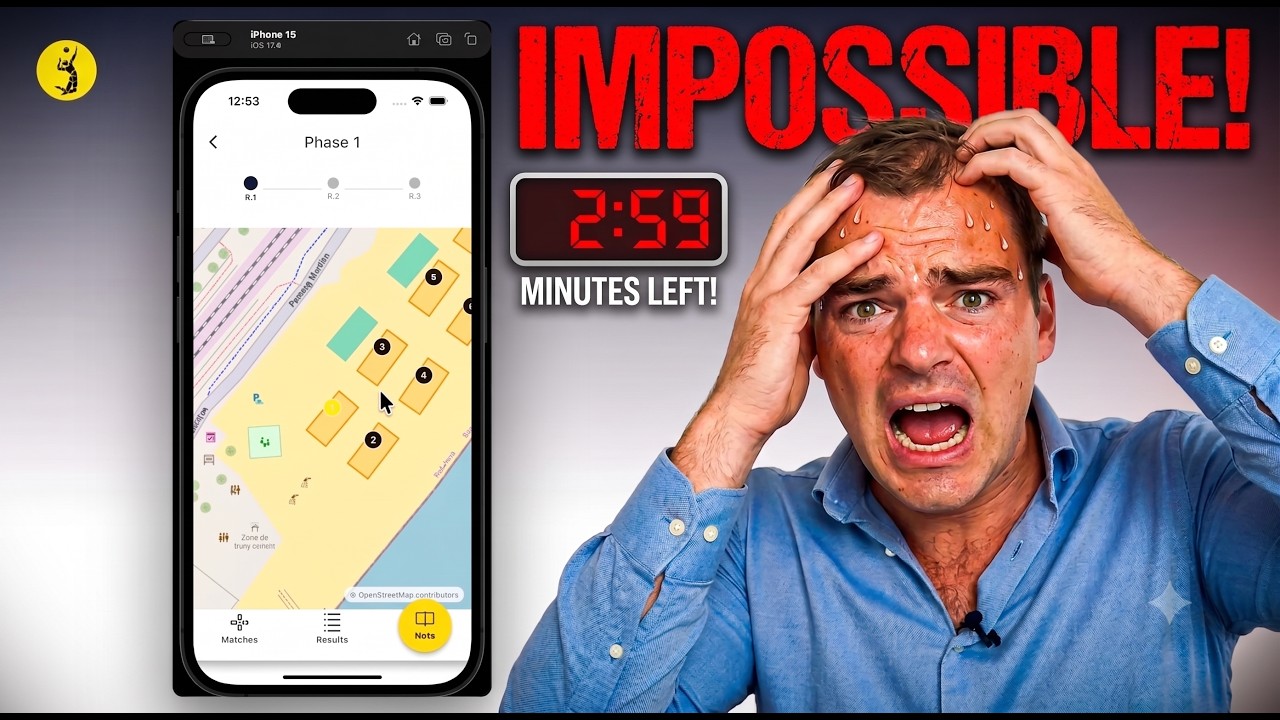 Loads YouTube only when you press play
The tournament journey runs in five stages. Each stage has its own overview with the detailed steps beneath it.
Stage 1 · Tournament Configuration
Section titled “Stage 1 · Tournament Configuration”Set the event up in the right order — build the form and price first, so you can attach them as you upload the event:
- Attach a custom inscription form — this is the most important choice here. Design exactly what each team fills in at sign-up (team details, players, merchandise and your own custom questions) so you collect everything you need up front. Optional — skip it and a basic name form is used instead — but a custom form is what makes registrations clean. See Build an inscription form →.
- Set the inscription price — charge online (Stripe), collect out-of-app (manual), or make it free.
- Create the tournament — upload the event and attach the form and price. Running a series the same day? Use Copy as new to clone it.
- Pick a rulebook (optional) — use a standard FIVB rulebook for your country or attach your own custom rulebook (details in Rulebooks →). You can also link a league or ranking.
- Share the sign-up link — open registrations and send teams the public page.
Full stage: Stage 1 · Tournament Configuration →
Stage 2 · Tournament Preparations
Section titled “Stage 2 · Tournament Preparations”While sign-ups are open, work the incoming registrations:
- Manage registrations — every team’s status and payment state.
- Register referees — add your officials pool (if you use one).
- Form answers & reports — read what teams submitted and export CSV/ZIP reports.
Full stage: Stage 2 · Tournament Preparations →
Stage 3 · Close Inscriptions
Section titled “Stage 3 · Close Inscriptions”When registration closes, build the first playable stage:
- Close inscriptions & confirm seeds — stop sign-ups, fix entry points, and mark non-playing teams Deleted or Disqualified.
- Generate groups, then create or load a court map.
- Create matches and assign them to courts.
- Advance to Phase 1 — this releases the matches to players and referees.
Full stage: Stage 3 · Close Inscriptions →
Stage 4 · On-site Management
Section titled “Stage 4 · On-site Management”On the day, run the play:
- Brackets — build the elimination stage once groups have results.
- Live scoring & spectator link — enter set scores and share live results with spectators.
Full stage: Stage 4 · On-site Management →
Stage 5 · Close Tournament
Section titled “Stage 5 · Close Tournament”Finish and publish:
- Close the tournament — review the final ranking and points, then publish results.
- Rankings — carry results into a season-long ladder.
Full stage: Stage 5 · Close Tournament →
What’s next
Section titled “What’s next”- Share the participant guides with your players.
- Not sure which format fits your event? Plan your format with our team.
- Set up your club end-to-end with Club Manager.